

Showing all questions.
The real-time dongle is connected with a cable to the electricity meter's customer port, depending on meter model: an RJ12 cable for a P1 port or an RJ45 cable for a HAN port. The dongle is normally placed in the electrical cabinet.
On the back are magnets that often let the dongle attach directly to metal in the electrical cabinet. It also works fine to let the dongle sit loose, or to use double-sided tape or cable ties if needed.
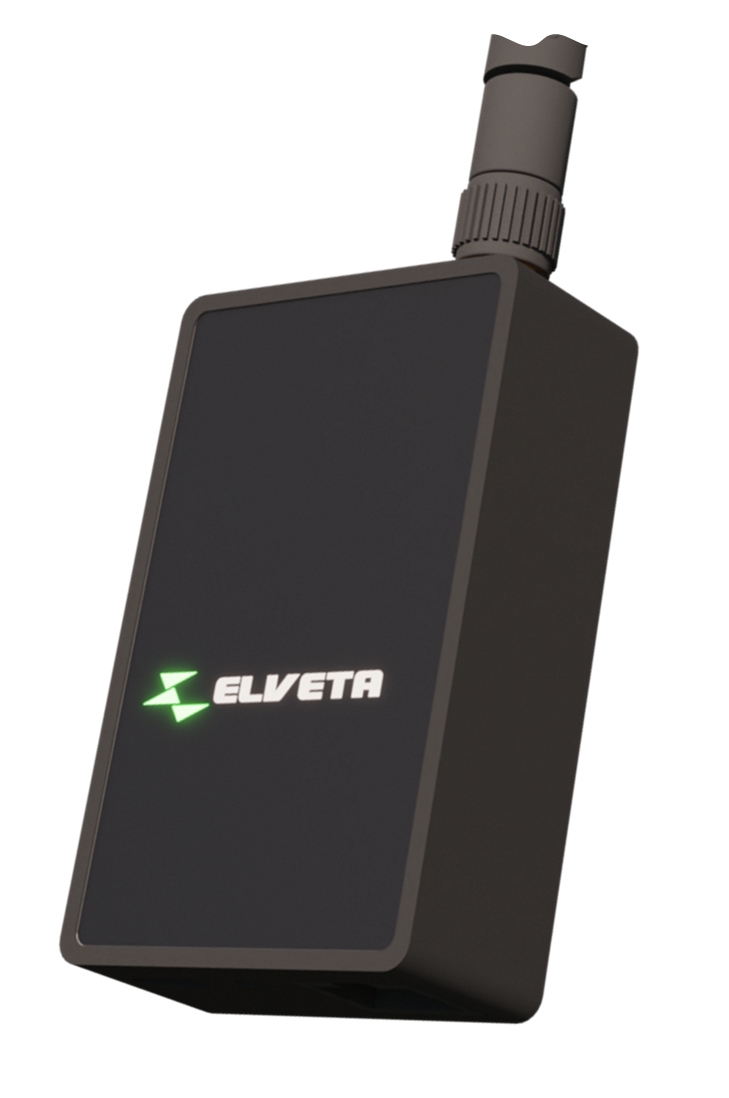
For the best Wi-Fi coverage, we recommend pointing the long side of the antenna toward the Wi-Fi router. Feel free to try different angles and wait a minute between each change.
Place the dongle so there is as clear a line of sight as possible between the dongle and the router.
Note that the inside of a south-facing metal door can get hotter than +70 °C, so we recommend placing the real-time dongle on an interior wall, not on the door.
See pictures and examples of how the dongle is connected to different electricity meters under connecting to electricity meters.
The dongle isn't broken. Some electrical cabinets, or parts of them, are made of materials that aren't magnetic, such as aluminum or certain stainless materials.
Try moving the dongle to a different spot in the cabinet. Use double-sided tape or a cable tie if the magnets don't hold.
It depends on the meter model, but it's not recommended. There's a risk the signal becomes too weak and data packets can be corrupted in transmission.
Note that only cables from Elveta are approved. Standard RJ45 or RJ12 cables may be wired incorrectly to work.
Only cables from Elveta are approved. The cable must fit both the Elveta dongle and the electricity meter's customer port.
Standard network cables or phone cables aren't reliably wired the right way and can prevent the dongle from starting or receiving data.
The included cable is 60 cm long.
This applies to both the P1 port cable with an RJ12 connector and the HAN port cable with an RJ45 connector.
Note that only cables from Elveta are approved.
No. In many cases it works better to place the dongle near the opening or outside the metal cabinet itself, to improve the Wi-Fi signal.
Note that the dongle must be protected from precipitation and must not be placed unprotected outdoors.
If the dongle doesn't get enough radio coverage in the electrical cabinet, an external antenna can be used and placed outdoors instead. See the question about the external antenna.
For the best Wi-Fi coverage, we recommend pointing the long side of the antenna toward the Wi-Fi router. Feel free to try different angles and wait a minute between each change.
Place the dongle so there is as clear a line of sight as possible between the dongle and the router.
Yes. Elveta sells an external antenna with a 150 cm long cable that can replace the built-in antenna if extra range is needed.
The external antenna is IP68-rated and can therefore be mounted outside the electrical cabinet, even outdoors. It's best mounted on top of the cabinet. With its magnetic base, it attaches easily to metal electrical cabinets.
For the best results, the antenna should be placed with as clear a line of sight as possible – as few obstacles as possible – between the real-time dongle and the Wi-Fi router.
Yes, normally the customer can install the dongle themselves by connecting the cable to the electricity meter's customer port and configuring Wi-Fi according to the manual.
The customer should not open sealed parts of the electricity meter or the electrical panel.
The dongle needs to be connected to the new Wi-Fi network. Follow the setup guide again to configure the new network name and password.
Yes. The dongle needs to be updated with the new Wi-Fi password. Restart the Wi-Fi setup, or factory reset the dongle and set it up again.
Check that the home network works, that the internet works, that the dongle is properly connected, and that the signal strength is sufficient. Also check the color of the LED.
Check that the Wi-Fi network uses 2.4 GHz, that security is set to WPA2 or mixed WPA2/WPA3 mode, that the network is active, that the internet works, that the signal strength is sufficient at the electrical cabinet, and that the correct password is used.
Many modern routers use both 2.4 GHz and 5 GHz under the same network name. The dongle only uses 2.4 GHz.
Try moving the Wi-Fi router closer to the electrical cabinet, redirecting the dongle's antenna, placing the dongle closer to the cabinet opening, or using a Wi-Fi extender or mesh node closer to the electricity meter.
Metal cabinets can significantly dampen radio signals. Small changes in placement can make a big difference.
Common causes are a weak Wi-Fi signal, temporary interference on the wireless network, a router restart, a power outage, or an unstable internet connection.
The dongle will automatically reconnect once the connection is available again.
The Wi-Fi network must be 2.4 GHz.
It must use WPA2 or mixed WPA2/WPA3 mode, and support IEEE 802.11b, IEEE 802.11g, or IEEE 802.11n (also known as Wi-Fi 4). Support for WPA3 was added in the fall of 2026. WEP and WPA (the original version) are not supported.
Yes. An internet connection is required to send real-time data to the service and the app. Without internet, the customer can't see updated values in the service.
Data isn't stored on the dongle, so when the internet connection is lost, the data is lost too.
Poor Wi-Fi coverage – try placing the real-time dongle in different spots in the electrical cabinet, or move the Wi-Fi access point closer.
Wrong Wi-Fi name or password – the dongle will light up red. Factory reset or restart the setup and enter the details again.
Wi-Fi isn't on 2.4 GHz – check that 2.4 GHz is enabled on your Wi-Fi access point.
Wi-Fi is missing WPA2 – check that the Wi-Fi access point has WPA2 or mixed WPA2/WPA3 mode. Networks with WPA3-only mode are not supported by the dongle.
No. The dongle only uses 2.4 GHz Wi-Fi, since it normally gives better range through walls and electrical cabinets.
Yes, if the hotspot device offers stable 2.4 GHz Wi-Fi with WPA2 or mixed WPA2/WPA3 mode and sufficient coverage at the electricity meter.
It varies depending on walls, metal, interference, and router model. In some homes 30–40 meters works without issue, while other installations need a shorter distance or a Wi-Fi extender.
IEEE 802.11 is the standard family for Wi-Fi. Different variants have different speed, frequency bands, and range.
The real-time dongle uses 2.4 GHz and supports IEEE 802.11b, IEEE 802.11g, and IEEE 802.11n, but there are several, for example:
Wi-Fi access point is a connection point for Wi-Fi and the device that provides the wireless network.
Wi-Fi router is often a combined device that shares the internet connection, creates a local network, and contains a Wi-Fi access point.
Wi-Fi network is the actual wireless network the customer connects to, often with a network name (SSID) and password.
Firewall is a security feature that controls which traffic is allowed to pass between the network and the internet. It can be built into the router or provided as separate network equipment.
Elveta's real-time dongles work with all Swedish electricity meters that have an activated customer port. The Elveta ES32 supports electricity meters with a P1 port (RJ12) or HAN port (RJ45) and the matching cable, and the Elveta ES3K supports Kamstrup OMNIPOWER® electricity meters.
No. The dongle is designed to connect to the electricity meter's customer port and does not affect the meter's function or billing.
However, the customer should always use the correct cable and never open sealed parts of the electricity meter.
RJ12 is the narrower connector with 6 pins and resembles an older type of phone cable. RJ45 is the wider connector with 8 pins and resembles a standard network connector.
The port's name isn't always enough to determine the connector type, since P1, HAN, and H1 can be used in different ways. Look at the width of the connector, or compare it to a network cable, to see if it's RJ45.
When the customer port is active, the electricity meter starts sending data to the dongle. The dongle shows this with a steady green light, which means both that data is being received from the electricity meter and that the internet is working. If the dongle blinks green instead, it means the internet is working but no data can be seen from the electricity meter.
In many cases the customer can see the status of the customer port with the electricity network provider, for example on My Pages.
The real-time dongle supports the data protocols IEC 62056-21 and IEC 62056-7-5.
It depends on the port type and electricity meter.
No, not as long as the electricity meter supports P1 5 V or HAN 24 V for the ES32, or if it's a Kamstrup OMNIPOWER® with the ES3K.
If the ES32 real-time dongle instead needs to be connected to a Kamstrup OMNIPOWER® with a Kamstrup P1 adapter or Kamstrup HAN adapter, external power to the ES32 via USB-C is required.
If the electricity meter doesn't meet the industry recommendations or standard for P1 or HAN, there's a risk it won't supply enough energy to power the real-time dongle. In that case, external power via a USB-C cable may be needed.
Some electricity meters, for example a Kamstrup OMNIPOWER® with a P1 adapter, require voltage in on their RJ12 port. This is supported by the real-time dongle, but the real-time dongle must then be powered via USB-C.
P1 and HAN normally describe the type of customer port or interface on the electricity meter. RJ12 and RJ45 describe the physical connector.
RJ12 is the narrower connector with 6 pins. RJ45 is the wider connector with 8 pins and resembles a standard network connector.
More information is available under Port Information - P1 vs RJ12 and HAN vs RJ45.
Speed mainly depends on the electricity meter's protocol and how often the meter sends data, not just on whether the connector is RJ12 or RJ45.
If the electricity meter can be configured for P1 or HAN, Picofrost always recommends using P1, which is faster.
More information is available under Which Port Is Fastest, RJ12 or RJ45?.
Data is normally updated in near real time, often within a fraction of a second after the electricity meter has sent out data.
The real-time dongle collects data directly from the dongle without adjusting the values. The electricity company retrieves its own energy values, and those values can be adjusted based on various factors. This means small differences can be seen between what the real-time dongle collects and what the electricity company shows.
History builds up only after installation. If the dongle was recently installed, older history may therefore be missing.
Also check that the dongle has been online and receiving data continuously.
It depends on which app or service is used. In many cases it's possible to share access with more users, such as in the white-label app from EG Bright.
Some sites, for example those with solar panels, can both buy and sell electricity. Depending on how the app presents it, export may be shown as a separate direction or as negative power.
This is normal and means the site is, at that moment, exporting more electricity to the grid than it's consuming.
The LED shows the real-time dongle's current status.
It means the dongle has no power. Check the cable to the electricity meter and that the correct cable is used. Some installations may require extra power via USB-C.
A steady yellow light means the real-time dongle is starting up. It can show yellow for up to 2 minutes during startup.
A steady blue light means the real-time dongle is ready to be configured and needs Wi-Fi details. You onboard it via the electricity company's app.
A steady green light means everything is working normally.
Blinking green means the dongle isn't receiving meter data from the electricity meter. This is usually because the customer port isn't activated, the cable isn't properly connected, or the wrong cable is being used.
A steady red light means a problem with Wi-Fi. Check that the router is running, that coverage is sufficient, and that the network name and password are correct.
If the dongle needs to be reprogrammed, redo the onboarding via the electricity company's app.
A steady purple light means the Wi-Fi network can be reached but the internet isn't available. Try restarting the router, fiber converter, or mobile router.
Briefly press the button on the real-time dongle with a pen or paper clip while the product is powered on. When the LED lights up blue, it's ready to be configured again.
If the dongle lights up green but data is missing in the app, it may be due to a delay in the service, the wrong account/site in the app, or the customer port having been recently activated and not yet started sending data.
Check that the customer is logged in to the correct account and that the installation is linked to the correct site.
Yes. The dongle is designed for secure transmission of energy data, and all communication is encrypted.
No. The dongle only reads data from the electricity meter. It cannot control the meter, affect the meter's billing, or turn the power on or off.
The dongle primarily collects energy data from the electricity meter. Handling of personal data follows applicable data protection rules and the electricity company's or service's privacy policy.
Data is only shown to authorized users in the service or app being used. Customers should use a strong password and not share login details with anyone unauthorized.
Yes. The dongle normally starts up automatically again once power returns. It may take a minute or so before data appears again.
Yes, but the dongle may need to be reconfigured depending on the installation, electricity meter, and service used.
The new electricity meter's customer port must be compatible and activated.
Note that historical data may behave oddly if you switch to an electricity meter with a very different energy value.
Yes, as long as there's a compatible electricity meter, an activated customer port, and an internet connection.
If the house is left empty for long periods, it's especially important that the Wi-Fi router is stable and that the power isn't switched off.
Contact support, and please have the following information ready:
No. Power consumption is very low.
The ES32 therefore meets all power consumption requirements from industry recommendations and electricity meter specifications.
First, try to reuse the dongle, for example by selling it on if you no longer need it.
Alternatively, it can be returned to the electricity company or dropped off at a recycling station as electronic waste.
More information is available under recycling.
The real-time dongle is designed to be used from -40 °C to +70 °C.
Note that the inside of a south-facing metal door can get hotter than +70 °C, so we recommend placing the real-time dongle on an interior wall, not on the door.
The real-time dongle's label includes the model designation, version, build date, manufacturer, CE marking, and the electronics recycling symbol.
The label also has a QR code containing the product's ID number and PIN code.
The customer finds the real-time dongle's device ID, also called the device's ID number or DeviceId, by scanning the QR code on the real-time dongle's label.
After scanning, a product page opens showing the device ID, PIN code, and product type.
Updates happen automatically in the background and are pushed out from the Elveta platform. Data transfer is normally not affected by updates. The customer doesn't need to do anything themselves.
The ES32 is 41 x 66 x 21 mm, excluding the antenna.
The ES3K is 72 x 24 x 54 mm, excluding the antenna.
Yes. Elveta real-time dongle ES32 and ES3K have a local real-time data port that Home Assistant can read directly over your local network, using its built-in DSMR Smart Meter integration. See Home Assistant for requirements, installation, and available data.
When the local data port is enabled, no electricity consumption data from the meter is sent to the Elveta cloud, and local reading keeps working even if you block the dongle's Internet access. The local data port setting is stored in the dongle, so it starts streaming again by itself after a restart, and Home Assistant reconnects automatically. The dongle keeps working when the Internet connection is lost. Internet access for the dongle is not required when local port is enabled but is strongly recommended in order to receive firmware upgrades.
Yes. All data values sent from the meter are presented on the local real-time data port, with no filtering. Swedish meters send accumulated imported and exported energy (kWh) and current imported and exported power (kW), plus per-phase values. See What Data Is Available.
Would you like to know more? Please contact us below.
Elveta is developed and operated by Picofrost AB. Read more at www.picofrost.com
+46 10-430 03 14
Täby, Sweden