

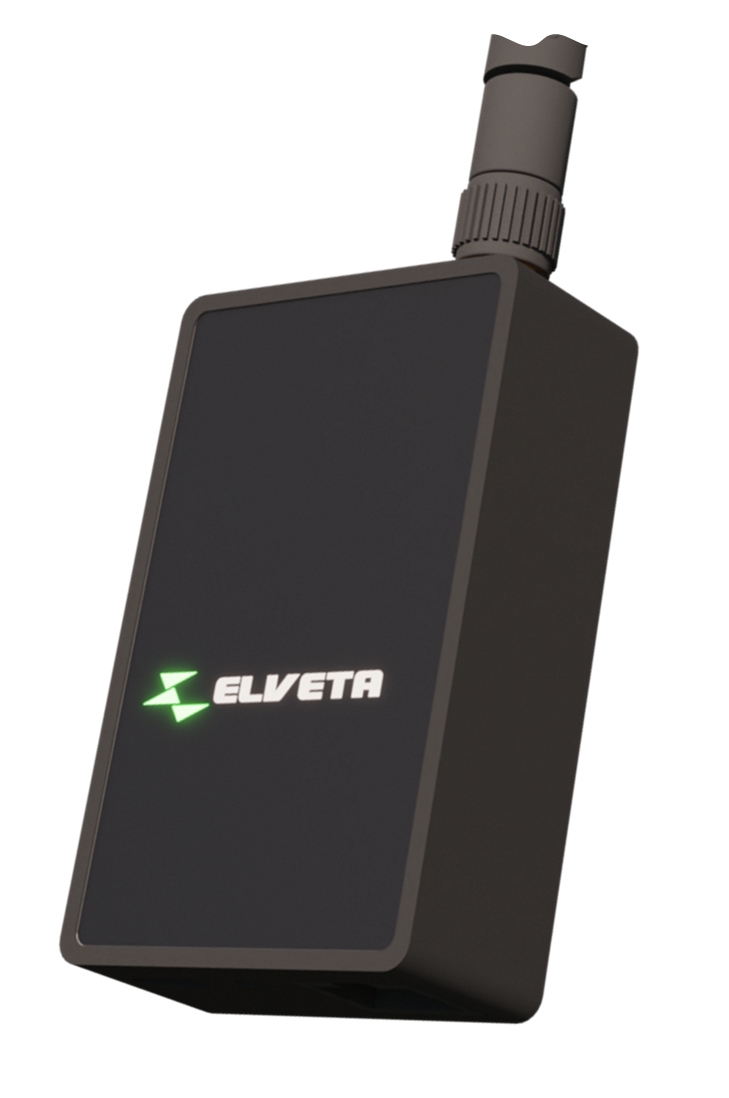
Choose how you would like to onboard your Elveta real-time dongle:
Product Sheet (English) Product Sheet (Swedish)
The Elveta ES32 is a secure, upgradeable, and easy-to-install real-time dongle for electricity meters with a P1 port (RJ12) or HAN port (RJ45). Its optimized antenna design provides reliable wireless connectivity and helps reduce installation issues and support needs, while an RGB status indicator gives users clear, immediate feedback.
The ES32 supports standard ASCII-based P1 data, HDLC-based HAN communication, and M-Bus electrical levels. If the electricity meter cannot supply sufficient power, the dongle can be powered externally through its USB-C connector.
| Model | Elveta real-time dongle for P1 and HAN |
| Article number | ES32 |
| Color | Black |
| Electricity meter | P1 with RJ12, HAN with RJ45. |
| Protocol | IEC 62056-21 and IEC 62056-7-5 |
| Data level | 3.6V - 5.5V and 24/36V M-Bus |
| Network | Wi-Fi 2.4 GHz WPA2/WPA3 |
| Size | 41 x 66 x 21 mm (without antenna) |
| Temperature | -40°C to +70°C (Same as Nordic electricity meters) |
| Voltage In | 5V, max 250mA from a P1 electricity meter. 24-36V, max 30mA from a HAN electricity meter. USB-C port for extra power is available (USB-C cable is not included). |
| Voltage Out | 5V, max 50mA (Requires USB-C) |
| In the package | Elveta real-time dongle ES32, antenna and 60 cm long RJ12-RJ12 cable (for P1) or Elveta real-time dongle ES32, antenna and 60 cm long RJ12-RJ45 cable (for HAN) |
Product Sheet (English) Product Sheet (Swedish)
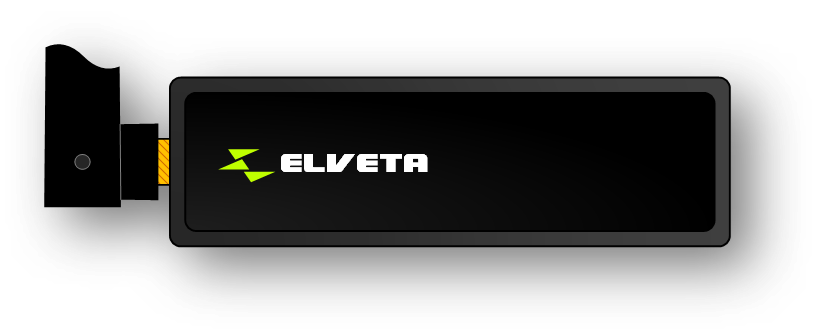
The Elveta ES3K is a dedicated real-time dongle for Kamstrup OMNIPOWER® electricity meters. It provides the same reliable wireless connectivity, strong security, simple onboarding, and responsive real-time data delivery as the ES32 - in a solution designed specifically for Kamstrup meters.
| Model | Elveta real-time dongle for Kamstrup OMNIPOWER® |
| Article number | ES3K |
| Color | Black |
| Electricity meter | Kamstrup OMNIPOWER® |
| Protocol | IEC 62056-21 and IEC 62056-7-5 |
| Data level | 4.15V ±0.25V |
| Network | Wi-Fi 2.4 GHz WPA2/WPA3 |
| Size | 72 x 24 x 54 mm (without antenna) |
| Temperature | -40°C to +70°C (Same as Nordic electricity meters) |
| Voltage In | 4.15V, max 75mA. USB-C port for extra power during configuration is available (USB-C cable is not included). |
| Expansion port | RJ12 (P1) for external dongles |
| In the package | Elveta real-time dongle ES3K |
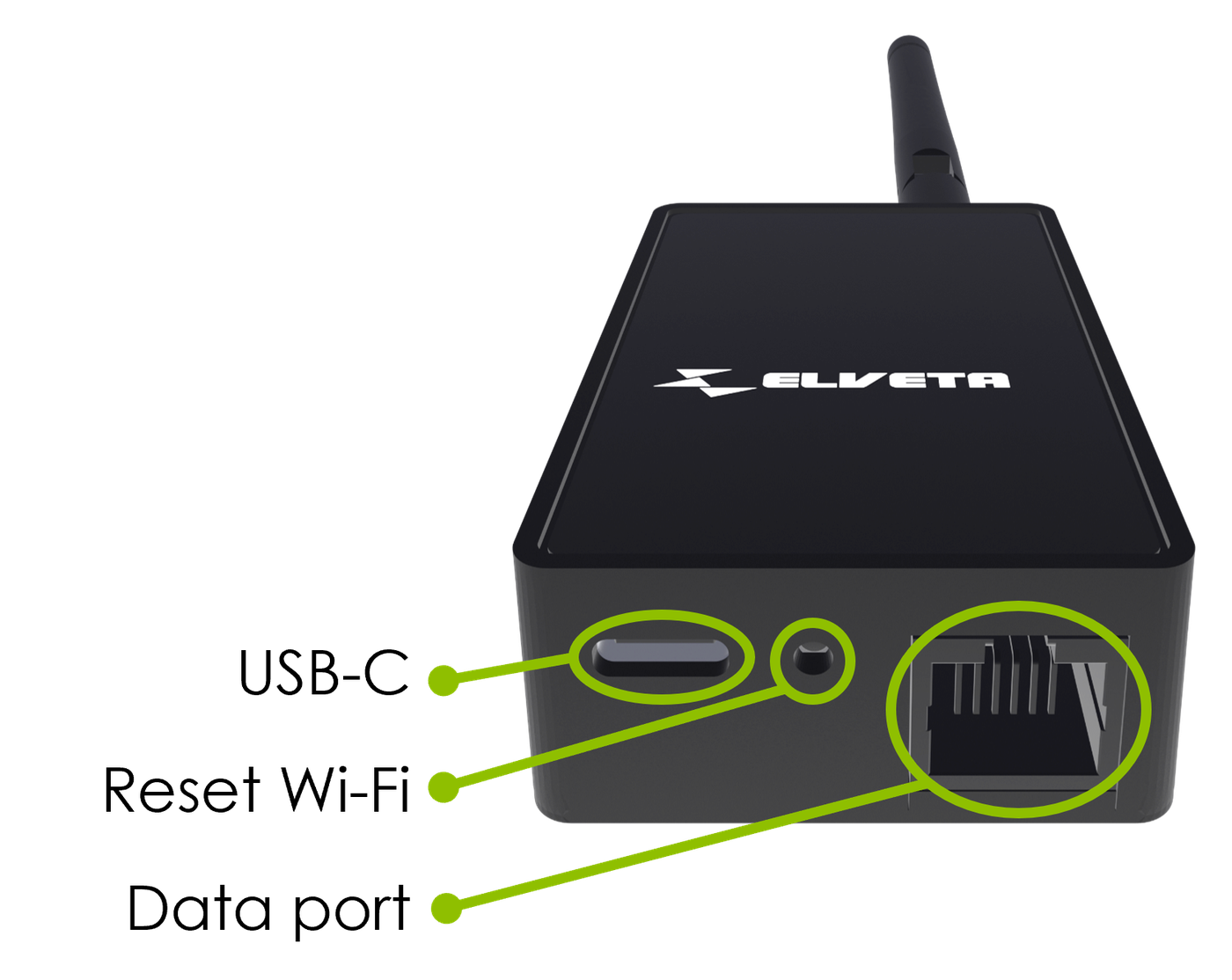
On the bottom of your Elveta real-time dongle there are three ports.
A USB-C connector where a charger can be connected to provide the Elveta real-time dongle with extra power if the electricity meter cannot supply the required power, or if the electricity meter requires input voltage, as in the case of Kamstrup OMNIPOWER® with a P1 module. See requirements regarding USB chargers and voltage output.
A button that resets the Wi-Fi configuration. After the button has been pressed, the Elveta real-time dongle must be configured with information about which Wi-Fi it should connect to.
A data connector, RJ12, where the electricity meter is connected using the supplied cable to an RJ12 port, RJ45 port or RJ10 Kamstrup adapter.
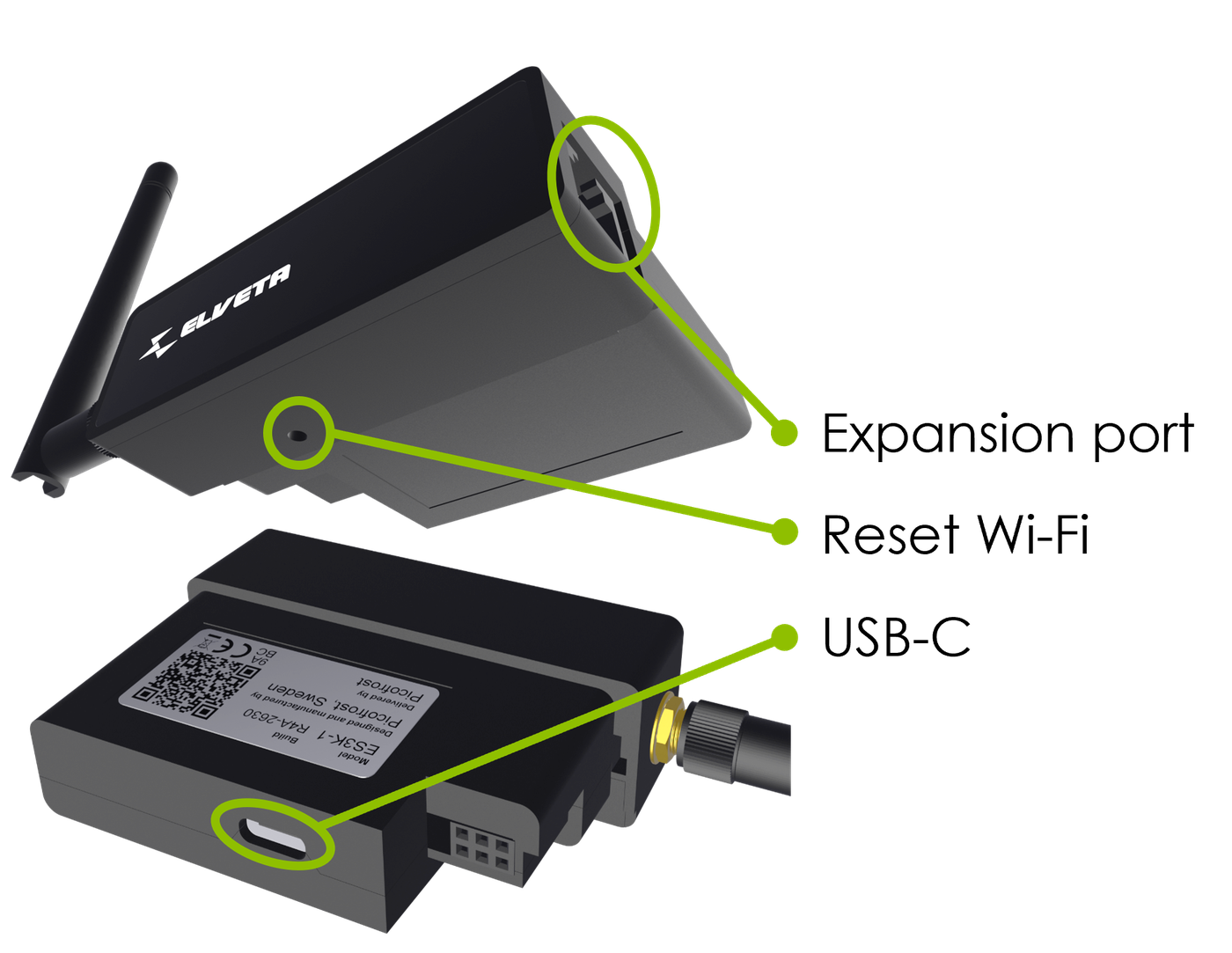
The Elveta real-time dongle ES3K has three ports as shown on the picture below.
A USB-C connector on the back of the device where a charger can be connected to allow configuration of the Elveta real-time dongle ES3K outside the electricity meter.
A button that resets the Wi-Fi configuration. After the button has been pressed, the Elveta real-time dongle ES3K must be configured with information about which Wi-Fi it should connect to.
A data connector, RJ12, used as an expansion port for P1 data, for connecting an additional external P1 device. Note that this port does not supply voltage.
Elveta real-time dongle can show status using different colors on the front LED. Note that the colors may differ between different white-label products, but the standard colors are shown in the table below.
| LED color | Meaning | What to do | |
|---|---|---|---|
| Steady yellow light | Elveta real-time dongle is starting | During startup, the Elveta real-time dongle shows yellow for up to 2 minutes before it changes color and shows a new status. If it continuously shows yellow for more than 2 minutes, try unplugging it so the LED turns off and then plug the cable back in. If the problem continues, contact Picofrost for help. | |
| Steady blue light | Ready to be onboarded via App | The Elveta real-time dongle is ready to be paired over Bluetooth. Follow the app guide to onboard your Elveta real-time dongle using the Elveta Connect app. | |
| Steady light-blue light | Ready to be onboarded via Wi-Fi AP | The Elveta real-time dongle needs Wi-Fi details to connect to your network. Follow the step-by-step guide to get started with your Elveta real-time dongle. | |
| Steady green light | Everything is as it should be | Data is coming from the electricity meter and the real-time dongle can reach the Elveta cloud. Enjoy your data on your page via mobile or computer. | |
| LED color | Meaning | What to do | |
|---|---|---|---|
| Off | Elveta real-time dongle has no voltage | Connect the Elveta real-time dongle to your electricity meter. If the LED is still black, the electricity meter probably does not provide enough power for it to work. In that case, connect a USB-C cable to it for extra power. | |
| Steady red light | Wi-Fi error | The Elveta real-time dongle cannot reach your Wi-Fi network. See Questions & Answers for more information. | |
| Steady purple light | No Internet | The Wi-Fi network can be reached, but the Internet is not available. See Questions & Answers for more information. | |
| Blinking green | Meter data missing | If the LED blinks green, it means that the Elveta real-time dongle is not receiving data from your electricity meter. See Questions & Answers for more information. | |
To ensure safe and compliant operation, the USB-C power source connected to this device must meet the following criteria:
Would you like to know more? Please contact us below.
Elveta is developed and operated by Picofrost AB. Read more at www.picofrost.com
+46 10-430 03 14
Täby, Sweden